
On this page, you will discover practical ways in which you can prepare learning content with OPAL course elements such as a learning card index, bibliography and blog in a varied and reflection-orientated way. You will receive suggestions for flipped classroom scenarios as well as concrete tips on how to easily create screencasts and self-study videos from existing PowerPoint slides. You will also gain an insight into how you can actively involve learners with interactive H5P videos, check understanding directly in the video and thus make your digital teaching more motivating and effective.
Deepen contents
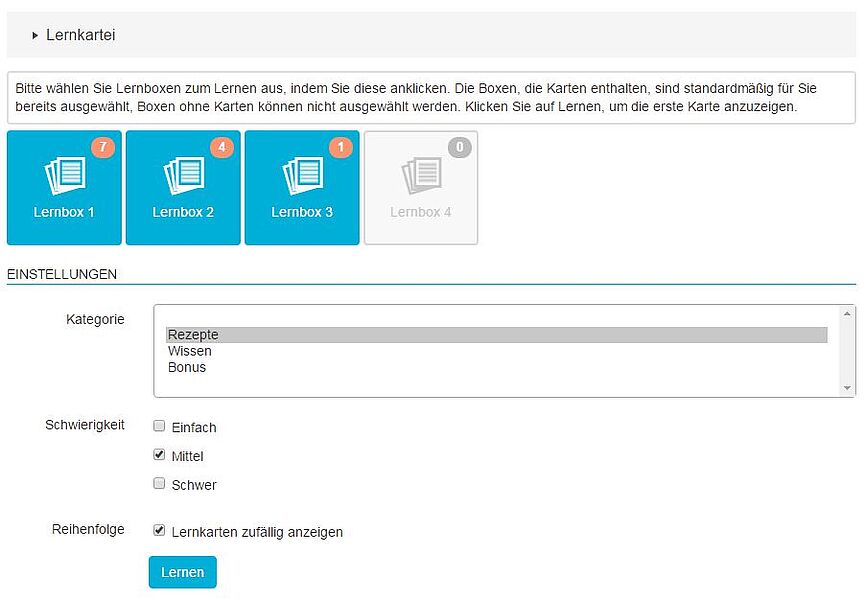
The content can be deepened, for example, with theOPAL course element flashcards for example.
Questions about learning content can be written down on flashcards and presented to the learner to answer. Depending on the correctness of the answer, the card is moved one pile forwards or backwards - until all the cards have been worked through. (see source 1)
Provide bibliography
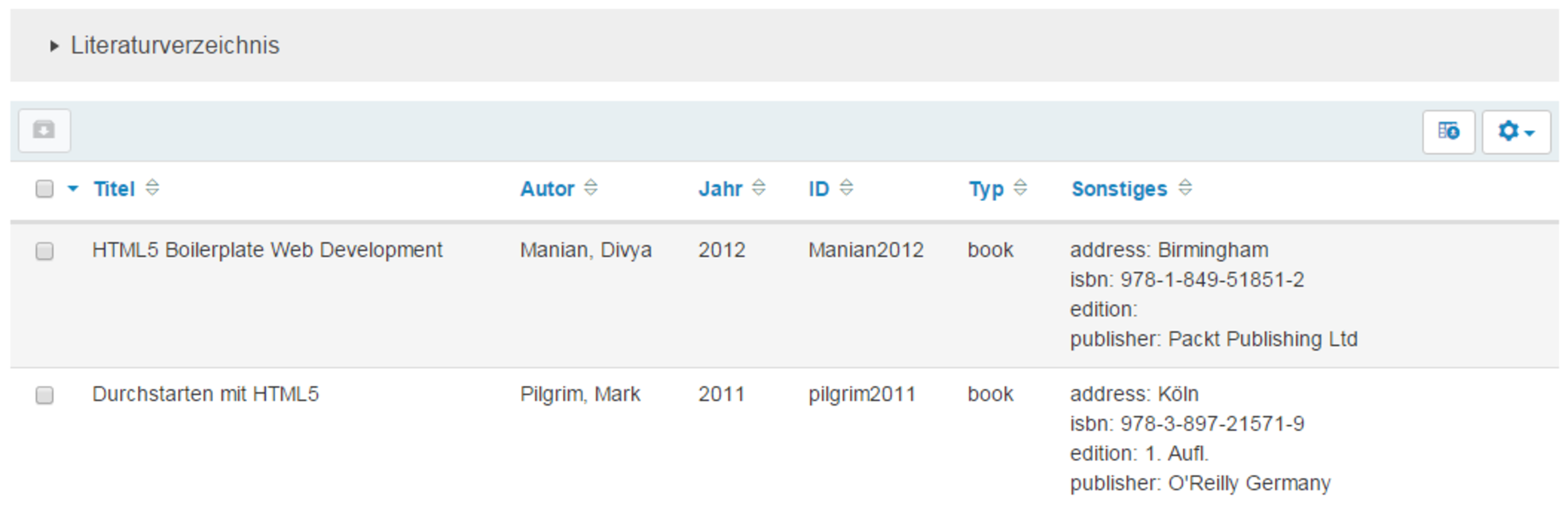
The OPAL course element Bibliography allows you to collect different literature in order to provide learners with an overview of the literature used and further reading.
Reflect on learning processes

Students can expand their knowledge with the support of the OPAL course module Blog apply their knowledge. It can also be used to present learning outcomes or reflect on learning experiences from individual courses. In addition to text, blogs can also contain images and videos. Other students can read and comment on these blogs. In this way, blogs can also be used as an e-portfolio or learning diary.
Flipped Classroom

Flipped classroom means outsourcing the content of a lecture. This means that a lecture recorded with Ubicast (currently possible in Nieperbau N01) can be watched by students at home at their own pace. In the classroom lecture, there is now more time to apply the knowledge together and interactively or to clarify questions.
Contact us by e-mail to find out more about lecture recordings.
Screencasts
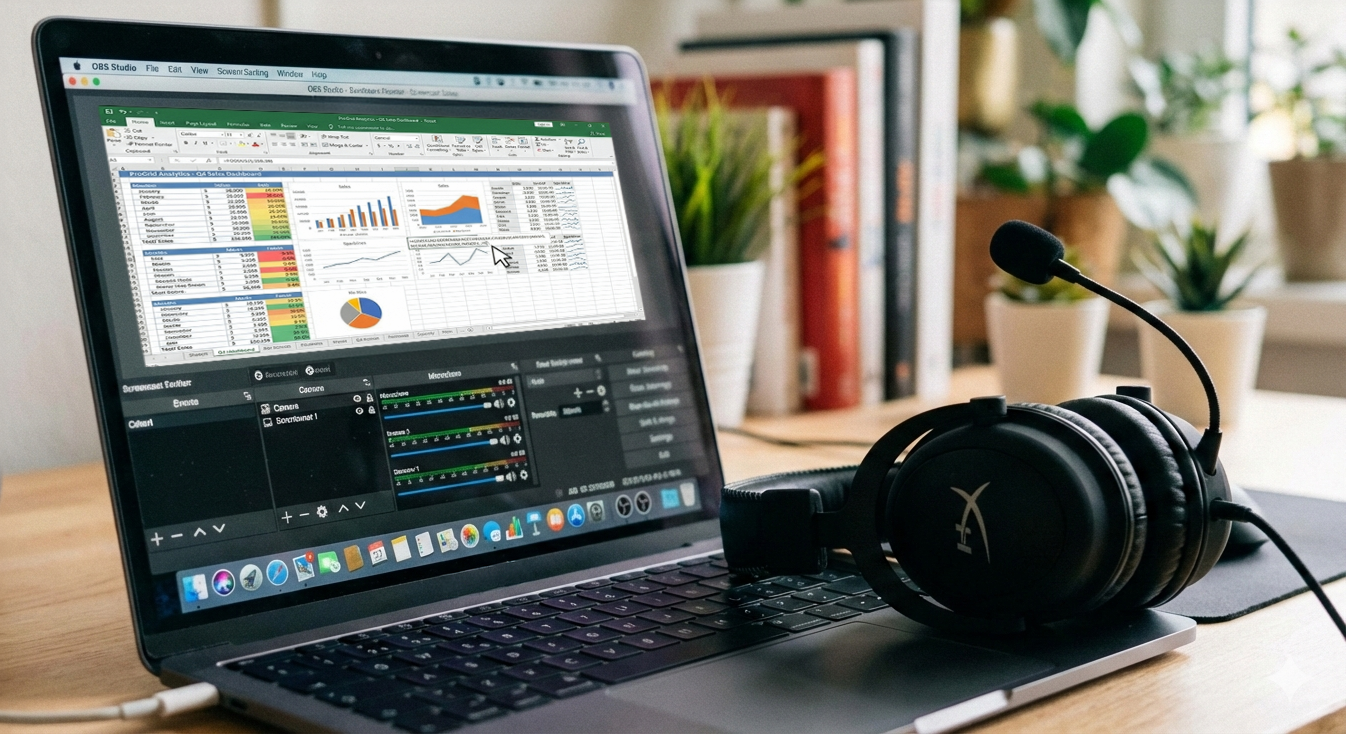
Screencasts are screen recordings in which, for example, slides, websites or software including audio commentary are recorded as a short video so that processes become visible and comprehensible step by step. In teaching, they are particularly suitable for explanatory videos on software or theories, for short preparatory or follow-up inputs (e.g. in the flipped classroom) and enable students to learn at their own pace, regardless of time and place, because they can pause and repeat the videos at any time.
Interactive videos with H5P
Interactive videos with H5P offer a way to make learning materials engaging and interactive. With this tool, you can add various elements such as multiple-choice questions, texts, images and other interactive tasks to videos. This encourages learners to actively engage with the content and is ideal for flipped classroom concepts and self-directed learning.
You can find an example of an interactive video here.
To create interactive videos yourself, you can use applications such as Lumi. Detailed instructions for creating interactive videos with H5P can be found here.
By incorporating interactive elements into videos, you can increase learner attention, check progress and encourage deeper engagement with the learning material. This makes interactive videos a valuable tool for modern, digital teaching concepts.
Further links
Media Centre TU Dresden (2016): Digital Teaching and Learning in Higher Education.
Issue 1: Increasing flexibility and versatility with digital teaching and learning materials (PDF)
